Table of contents
Open Table of contents
How to use dotenv VSCode Extension to Hide Environment Content
The dotenv VSCode extension is a convenient and organized way to keep your application’s environment variables securely hidden. It helps keep your sensitive information secure, while still allowing you to access it easily. In this blog post, we’ll walk you through the steps on how to use the dotenv VSCode extension to hide environment content.
Step 1: Install the Extension
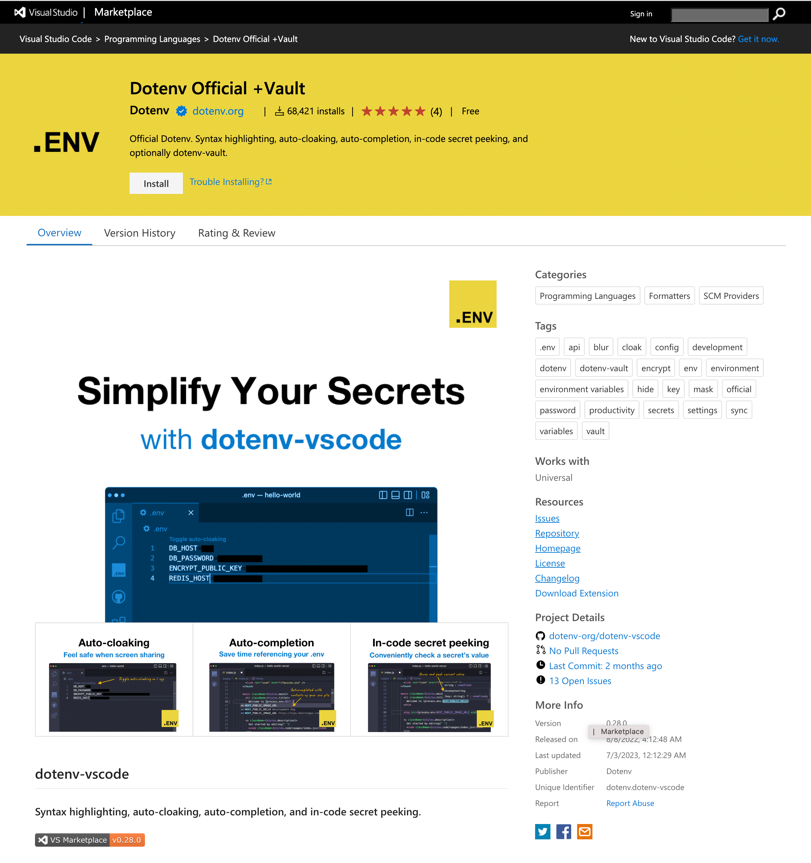
The first step is to install the dotenv VSCode extension. You can do this by going to the Extensions tab in VSCode (the bottom left-hand corner), and then searching for the dotenv extension or you can visit VSCode Marketplace here: https://marketplace.visualstudio.com/items?itemName=dotenv.dotenv-vscode. Once you’ve found it, click “Install”. This will automatically install the dotenv extension and add it to your VSCode environment.
Step 2: Create a .env File
Now that you’ve installed the dotenv VSCode extension, you’ll need to create a .env file. This will store all of your environment variables. To create a .env file, go to the File tab (under the home button) and click “New File”. Then name your file (for example, “.env”).
Step 3: Add Environment Variables
After you’ve created your .env file, you’ll need to add your environment variables to it. You can do this by opening the .env file and typing in the key/value pairs, like so:
MYSQL_HOST=localhost
MYSQL_USER=root
MYSQL_PASSWORD=password123
Step 4: Enable Auto-Cloaking
The last step is to enable auto-cloaking. This will make sure that any sensitive information in your .env file is securely hidden. To enable auto-cloaking, open the .env file and click on the “Toggle auto-cloaking” text in the top left-hand corner of the window. This will enable auto-cloaking for your .env file, which will help keep your sensitive information secure.

And that’s it! Now you know how to use the dotenv VSCode extension to hide environment content. With the dotenv extension, your environment variables are securely hidden while still allowing you to access them easily